- 0
- 1,303 word
Microsoft Teams has become a critical collaboration platform for organizations around the world. Businesses rely on it for communication, file sharing, meetings, and project management. However, situations such as mergers, acquisitions, organizational restructuring, or domain changes often require companies to perform a Microsoft Teams tenant to tenant migration.
From my experience working with Microsoft 365 environments, tenant migrations are among the most complex IT tasks. They involve transferring large volumes of data—including chats, channels, files, users, and permissions—from one Microsoft 365 tenant to another while ensuring minimal disruption to business operations.
Unlike simple data transfers, a Microsoft Teams tenant to tenant migration must also preserve collaboration structures, maintain security policies, and ensure users can quickly resume their work after the transition. Without proper planning and the right tools, migrations can become time-consuming and risky.
In this article, I will explain what tenant-to-tenant migration in Microsoft Teams means, why organizations need it, the challenges involved, and the best practices IT teams should follow to execute a successful migration.
What Is Microsoft Teams Tenant to Tenant Migration?
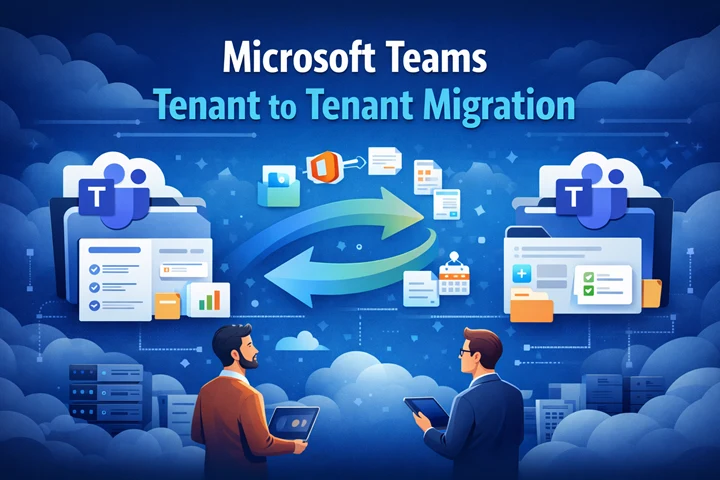
A Microsoft Teams tenant to tenant migration refers to the process of transferring Microsoft Teams data from one Microsoft 365 tenant (source tenant) to another tenant (target tenant).
A tenant is essentially a dedicated Microsoft 365 environment that contains:
-
Users and accounts
-
Teams and channels
-
Chat conversations
-
SharePoint and OneDrive data
-
Permissions and policies
When a business moves from one tenant to another, all relevant collaboration data must be migrated so that users can continue working without losing important information.
During a Microsoft Teams tenant to tenant migration, organizations typically move:
-
Teams and channels
-
Channel conversations
-
Files stored in SharePoint
-
User permissions and memberships
-
Tabs and apps associated with channels
Because Microsoft Teams integrates with multiple Microsoft 365 services, the migration process often involves SharePoint Online, Exchange Online, and OneDrive as well.
Why Organizations Need Tenant-to-Tenant Migration
Organizations usually perform a Microsoft Teams tenant to tenant migration when major structural or technical changes occur.
Here are the most common scenarios.
1. Mergers and Acquisitions
When two companies merge, they often combine their Microsoft 365 environments. This requires migrating Teams data from one tenant into another unified tenant.
2. Company Divestitures
Sometimes a company separates from a parent organization and must move its data into a new Microsoft 365 tenant.
3. Domain Changes
Organizations occasionally change their primary domain name, which may require migrating to a new tenant environment.
4. IT Infrastructure Modernization
Businesses may migrate to a new tenant to adopt improved governance policies, security configurations, or licensing models.
5. Compliance and Data Governance
In certain industries, data may need to be moved to a tenant that complies with specific regulatory requirements.
In each of these situations, a well-planned Microsoft Teams tenant to tenant migration ensures that business collaboration continues without disruption.
Key Components of Microsoft Teams Migration
Before starting the migration process, IT professionals should understand the main components involved.
Teams and Channels
Each Microsoft Team contains multiple channels where conversations and files are stored. These must be recreated or migrated in the target tenant.
Channel Conversations
Messages within Teams channels are valuable records of collaboration and decision-making. Preserving these conversations is critical during migration.
Files and Documents
Files shared in Teams channels are stored in SharePoint. Migrating these files ensures that project documents and resources remain accessible.
User Accounts and Permissions
Maintaining correct user access is essential to avoid security issues and ensure employees can access the resources they need.
Apps and Integrations
Many Teams environments include apps like Planner, OneNote, or third-party integrations that may require additional configuration after migration.
Challenges in Microsoft Teams Tenant to Tenant Migration
Although the process sounds straightforward, a Microsoft Teams tenant to tenant migration presents several technical challenges.
No Native Direct Migration Feature
Microsoft does not provide a built-in feature that allows administrators to directly move Teams data between tenants.
Complex Data Dependencies
Teams relies on other Microsoft services such as SharePoint, Exchange, and Azure Active Directory. These dependencies make migrations more complicated.
Large Data Volumes
Enterprises often have thousands of teams, channels, and files, making manual migration impractical.
Risk of Data Loss
Without proper planning, organizations risk losing important conversations, documents, or permissions.
User Disruption
If migrations are not handled properly, employees may lose access to important collaboration resources during the transition.
Because of these challenges, IT teams must carefully plan and execute the migration strategy.
Manual Approach to Tenant Migration
Some organizations attempt manual migration methods when performing a Microsoft Teams tenant to tenant migration.
A typical manual process includes:
Step 1: Prepare the Target Tenant
-
Create user accounts in the destination tenant
-
Configure licenses and permissions
-
Set up security policies
Step 2: Recreate Teams and Channels
Teams and channels must be manually recreated in the new tenant environment.
Step 3: Migrate Files
Files stored in SharePoint can be downloaded and uploaded to the new tenant.
Step 4: Reconfigure Apps and Tabs
Apps, connectors, and tabs must be manually configured again.
Step 5: Notify Users
After migration, users must log in to the new tenant and access newly created teams and channels.
Limitations of Manual Migration
Manual approaches often create multiple issues, including:
-
Time-consuming processes
-
Inability to migrate conversations properly
-
High risk of human error
-
Loss of metadata and permissions
-
Difficulties managing large environments
Because of these limitations, organizations usually prefer automated migration solutions.
Using a Professional Migration Solution
To simplify the process, many IT teams rely on specialized tools designed for Microsoft Teams tenant to tenant migration.
One widely used option is the SysTools Microsoft Teams Migration Tool, which helps organizations transfer Teams data between tenants while maintaining the structure of collaboration environments.
Instead of manually recreating teams, channels, and permissions, the tool automates the migration process. It enables administrators to securely migrate conversations, files, and channel structures with minimal downtime. This approach reduces operational complexity and allows IT teams to focus on strategic tasks rather than manual data transfers.
Best Practices for Successful Tenant Migration
A well-executed Microsoft Teams tenant to tenant migration requires careful planning and adherence to best practices.
1. Conduct a Pre-Migration Assessment
Before starting the migration, analyze the existing Teams environment.
Identify:
-
Number of teams and channels
-
Data volume
-
File storage locations
-
Apps and integrations
This helps determine the migration scope.
2. Create a Migration Strategy
Define a clear migration plan that includes:
-
Migration timeline
-
Teams and channels to be migrated
-
Communication plan for users
-
Backup procedures
A structured strategy ensures smoother execution.
3. Perform Pilot Migration
Always test the migration process with a small set of users or teams before migrating the entire environment.
Pilot testing helps identify potential issues early.
4. Maintain Data Security
Ensure all migration activities follow organizational security policies and compliance requirements.
Protect sensitive information during the transfer process.
5. Communicate with End Users
Clear communication is essential.
Inform users about:
-
Migration schedule
-
Expected downtime
-
Changes in login or access
This reduces confusion and support requests.
6. Validate Data After Migration
Once the migration is complete, verify that all data has been transferred correctly.
Check:
-
Teams and channels
-
Files and documents
-
User permissions
-
Conversations and tabs
Verification ensures the migration was successful.
7. Provide Post-Migration Support
After the migration, some users may need assistance navigating the new environment.
Providing quick support ensures productivity remains uninterrupted.
Final Thoughts
A Microsoft Teams tenant to tenant migration is a complex but necessary process for organizations undergoing structural or technological changes. Whether driven by mergers, acquisitions, or infrastructure upgrades, tenant migrations require careful planning to ensure business continuity and data integrity.
Manual approaches may work for small environments, but they quickly become inefficient and risky when dealing with large Teams deployments. By understanding the migration process, anticipating challenges, and following best practices, IT professionals can significantly reduce the risks associated with tenant migrations.
With the right strategy and reliable migration tools, organizations can move their Teams environments smoothly while preserving collaboration history, files, and permissions—ensuring employees can continue working without disruption.
Author

john@gmail.com
Related Posts

Reforming Workplace Safety in India: A Deep Analysis of the OSH Code 2020 and Its Business Impact
- 0
- 1,297 word
India’s labour law framework has undergone one of its most significant transformations in recent decades. Among the four consolidated labour codes passed...
Read out all
essential hoodie Online essential hoodies Worldwide Store
- 0
- 1,085 word
Hoodies have come to be extra than only a comfy garment; they may be now a style assertion embraced with the aid...
Read out allNguzo Saba Principles for Leadership | African Values Guide
- 0
- 536 words
Understanding the Cultural Foundation of African Leadership Leadership traditions in African communities have always emphasized unity, shared responsibility, and collective progress. Rather...
Read out allDiscover Timeless Antique Watches for Collectors and Enthusiasts
- 0
- 861 words
For collectors and watch enthusiasts, finding authentic antique timepieces can be both exciting and challenging. A trusted destination for exploring remarkable vintage...
Read out allWhat Makes Home Health Care Manassas Services Reliable Compared to Other Home Health Care Manassas VA Providers?
- 0
- 937 words
Finding the right support for a loved one at home can feel like a major responsibility. Families often compare different care providers...
Read out allHarvest Cannabis: Complete Guide to Timing, Methods, and Quality
- 0
- 1,461 word
For cannabis growers, the moment to harvest cannabis is one of the most exciting and critical stages of the entire cultivation journey....